 4.8/5
4.8/5







Instructions for Digital VisitsCard with NFC and QR code
Welcome and thank you for ordering digital business cards.Card!
To guarantee you a seamless experience and make setting up your new tracker as easy as possible, please follow these optimized steps.
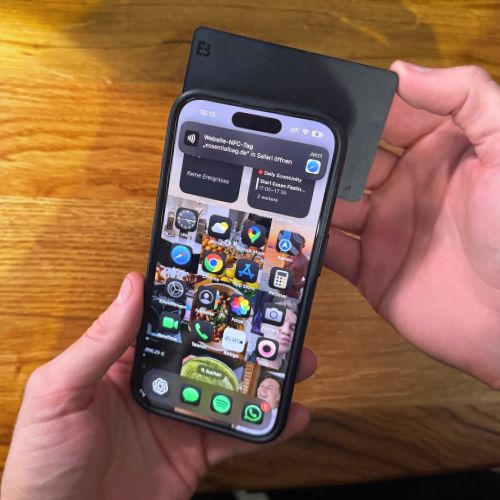
First test
Scan your Card
1. Unlock phone
Make sure your smartphone is unlocked and NFC is enabled (usually at the top of the quick settings panel on Android).
2. Card hold it up to your smartphone
Hold the back of your smartphone centered against the business cards.Card – that's where the integrated NFC tag is located.
3. The link appears automatically.
A link will automatically appear on the screen, similar to a push notification. Tap it to access the digital visit.Card to open.
How to personalize it
Individual furnishings
How to do it step-by-step with a free app,
Step 1: Download app
Download the free app “NFC Tools” from the App Store (iOS) or Google Play Store (Android) to your smartphone.
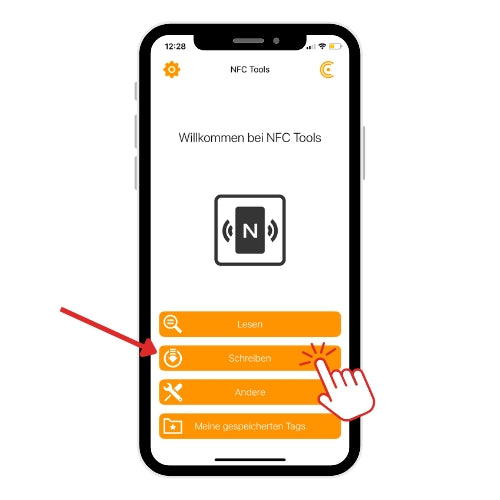
Step 2: Open the app and Write
- Open the “NFC Tools” App on your smartphone.
- Tap "Write"
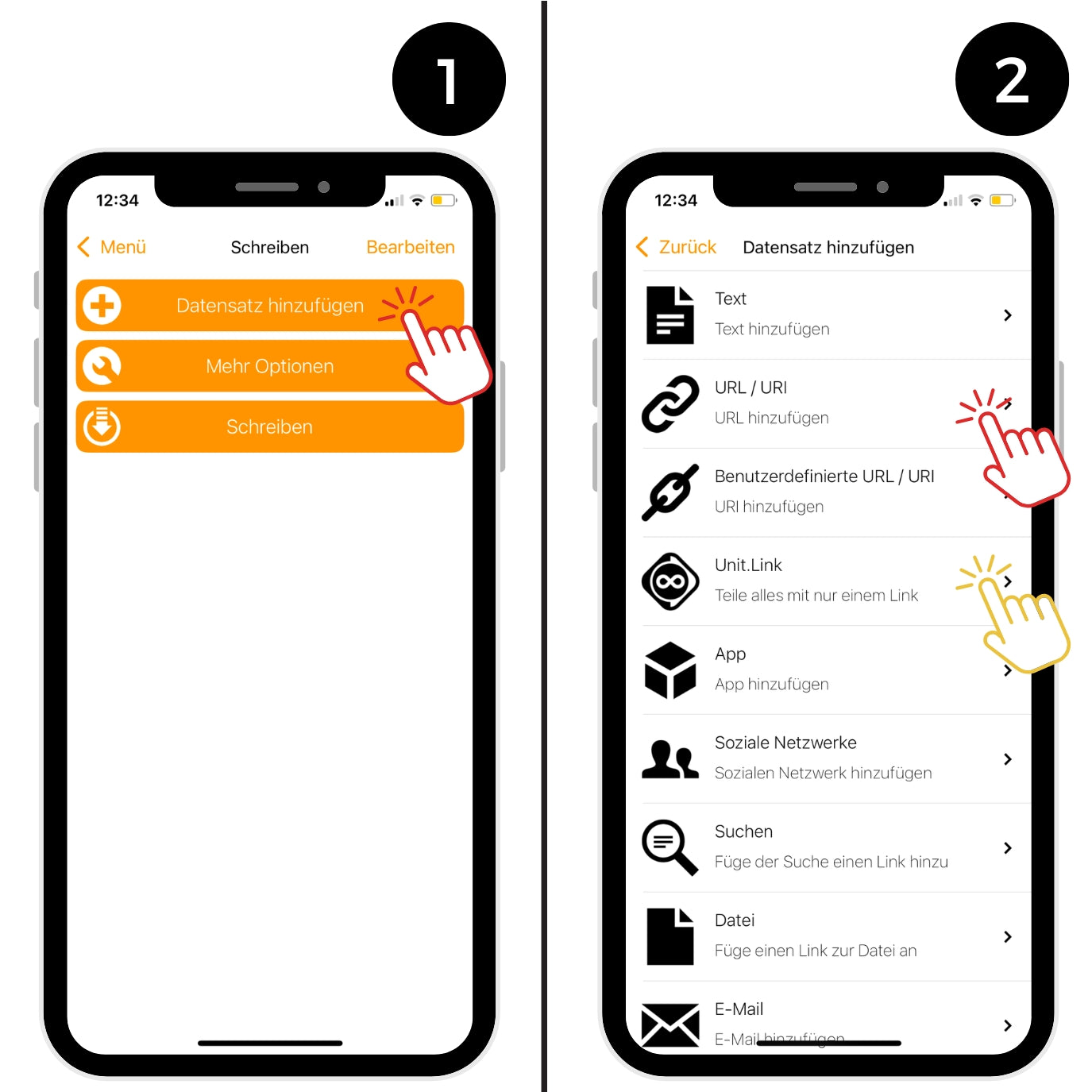
Step 3: Add link
- Tap “Add record”
- We recommend, either add a URL or use a central URL – e.g. via unit.link, to bundle all your important links there, such as LinkedIn, Instagram, website, etc. (see 4.2)
Single PackAdd link
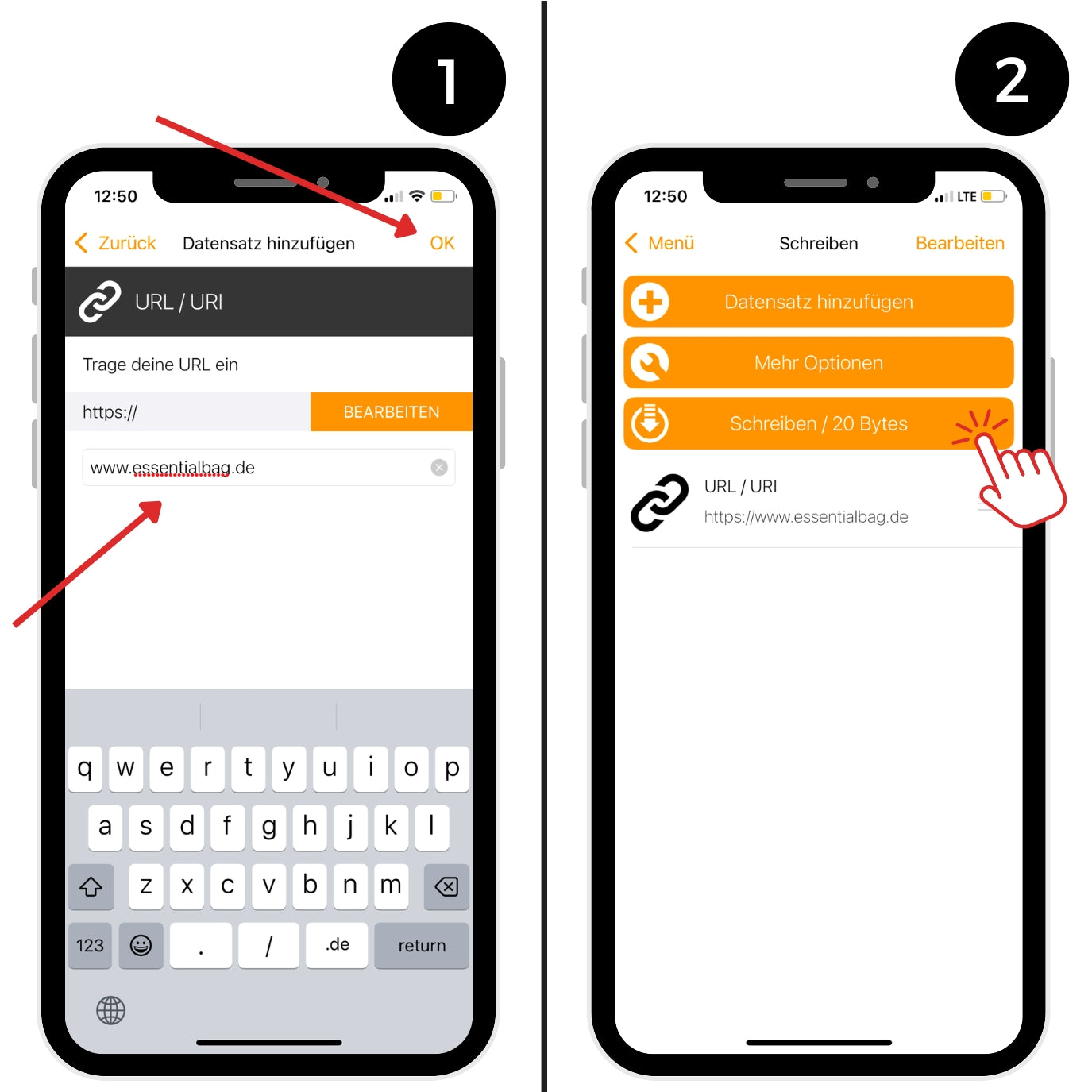
Step 4.1: Single PackAdd link
- Tap on “URL/URI”
- Enter the URL and confirm with "OK"
- Tap "Write"
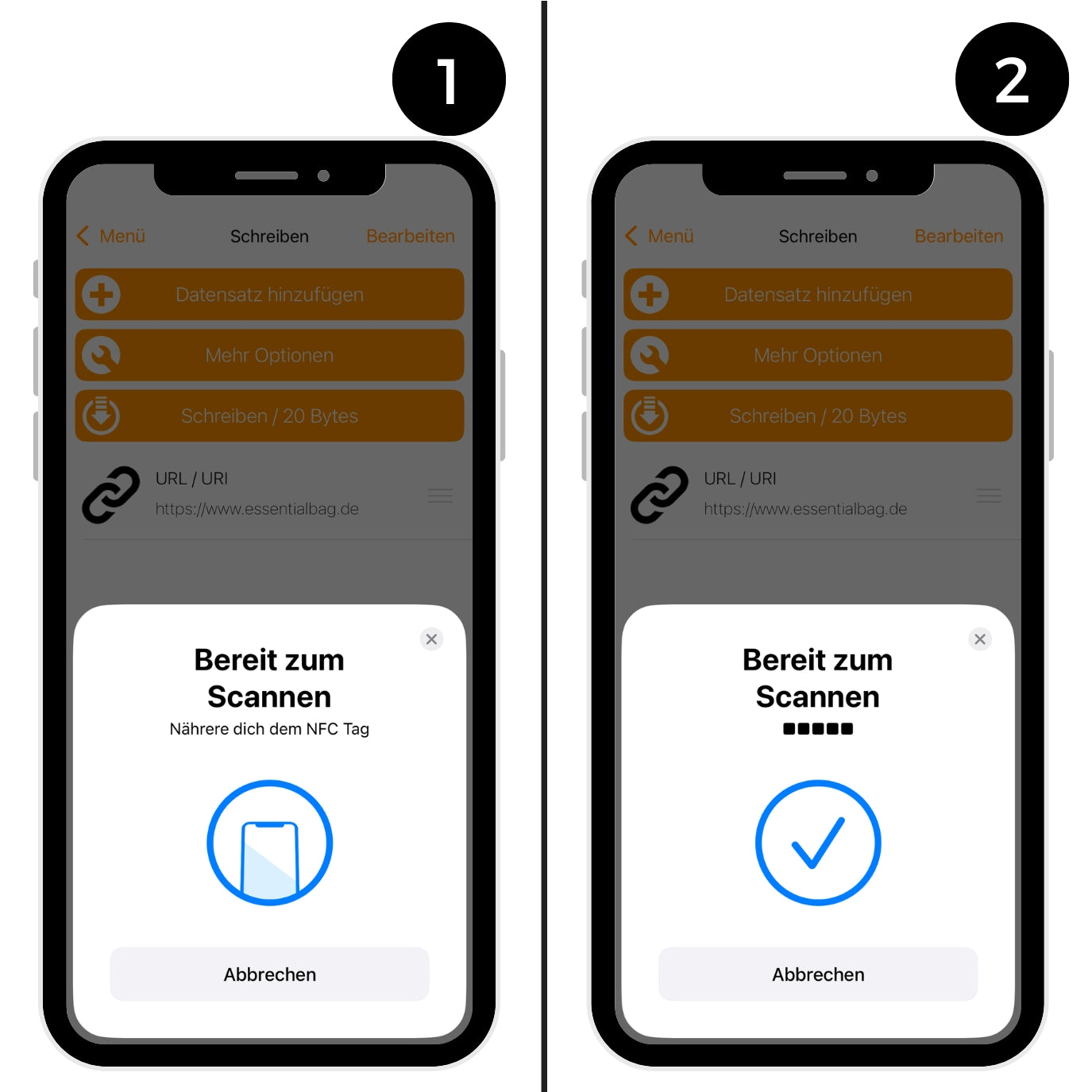
Step 4.1.2: WITH NFC Card Connect
- Now hold your NFC-Card to the back of your phone
- The link will lead to the Card written
Test if everything worked by checking your Card Hold it against your phone. Your phone must be unlocked for this to work.
(You can find an example image at the end of these instructions.)
Alternatively via UNIT.Link
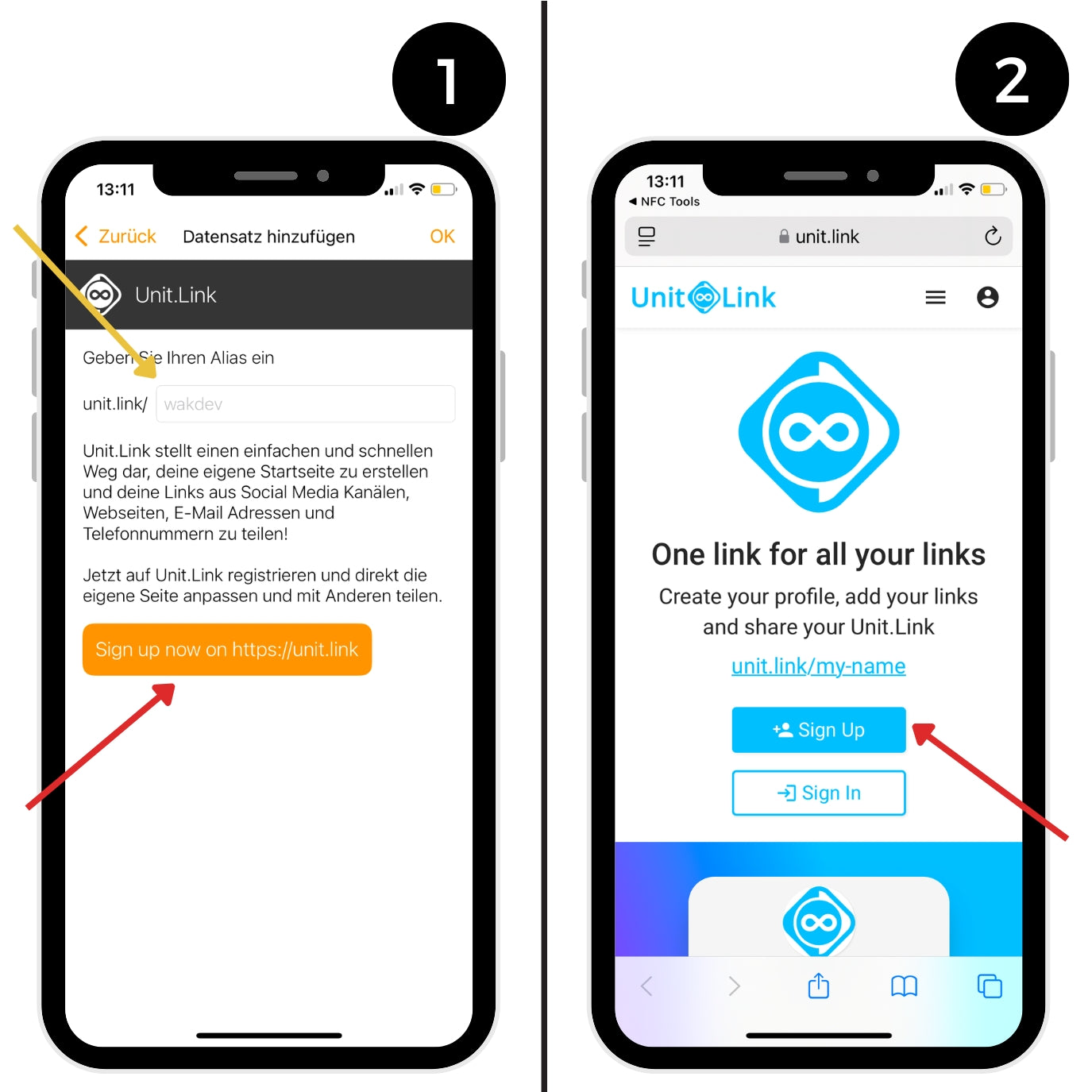
Step 4.2: about unit.link Add
- Tap on “Unit.Link“
- Create your own account via the “Sign Up”-Button to create a free account (we will explain the setup later in the instructions).
If you already have an account, simply add yours. Unit.Link-Link (wakdev) and tap "OK".
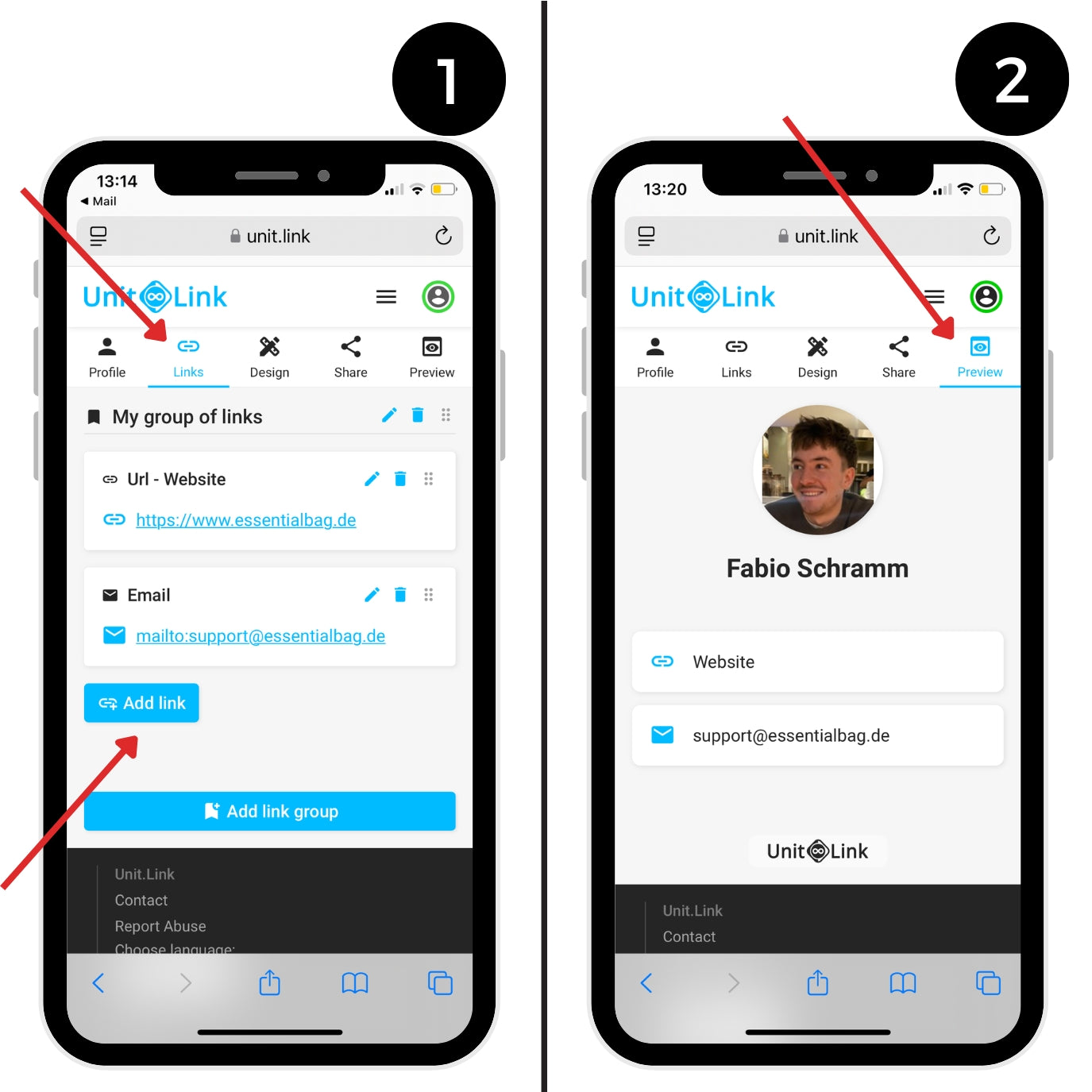
Step 4.2.1: Insert links
After you have registered and confirmed your email address, you can begin the setup.
Switch to the tab "Left", to add your desired content:
- Click on "Add Link"
- Then add, for example, your , E-mail address, Telephone number or social media links
Additionally, you can find more information under the tab “Profiles” a Profile picture or provide further information.
Under “Preview” You can see a preview of your personal Unit.Link-Page, just as it will later be displayed to the people who have your NFCCard Scan with your smartphone.

Step 4.2.2: connect to the app
- Switch to the "Share" tab and click on "Copy my link" to copy your personal link.
- Then open the NFC Tools App and insert the link there (see image 2).
- Confirm with "OK" and follow the next step of the instructions.
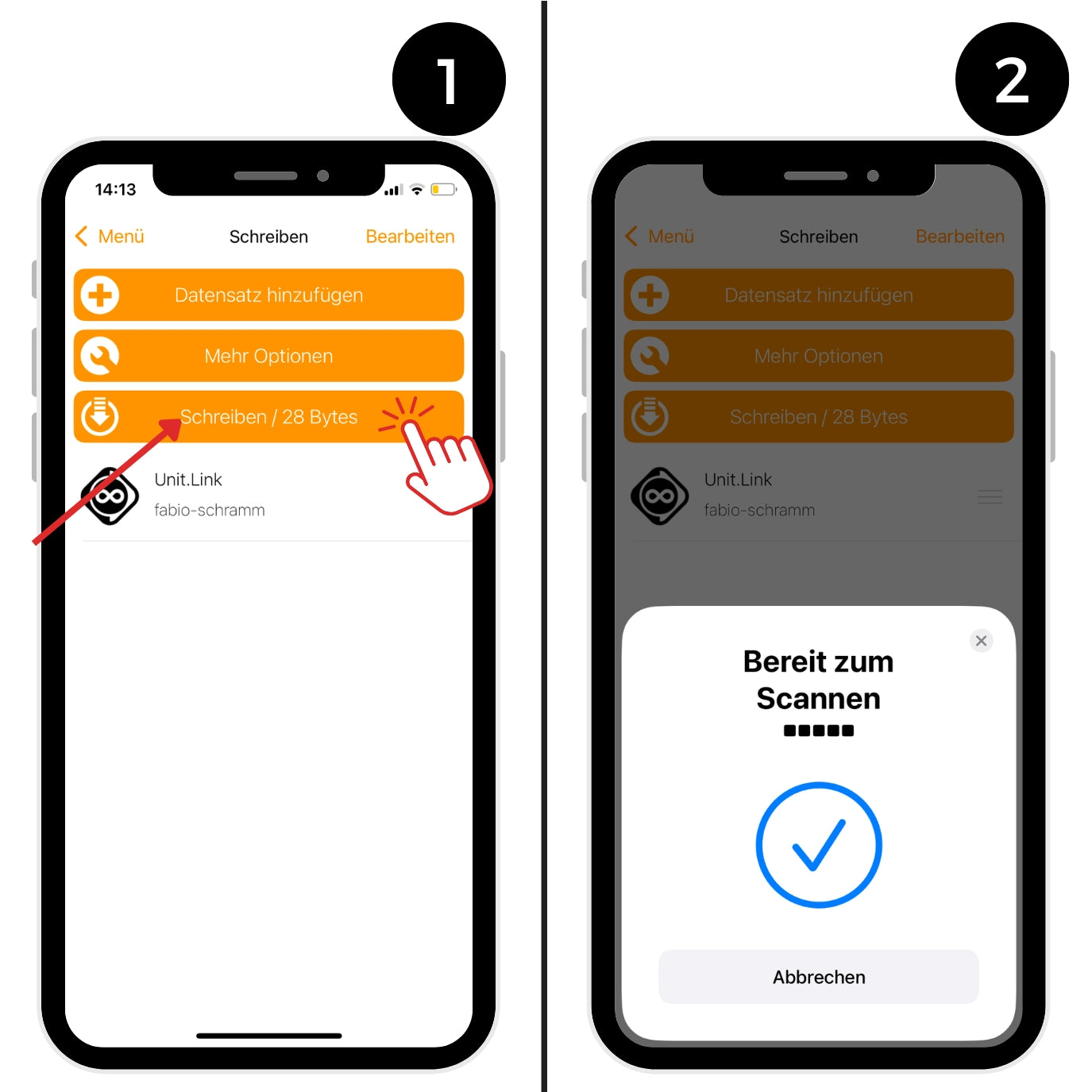
Step 4.2.3: with the NFC Card connect
- Now tap "Write" in the app.
- Now hold your NFC-Card to the back of your phone
- ✅ The link will lead to the Card written
Test if everything worked by checking your Card you hold it to your smartphone.
(You can find an example image at the end of these instructions.)
Final test
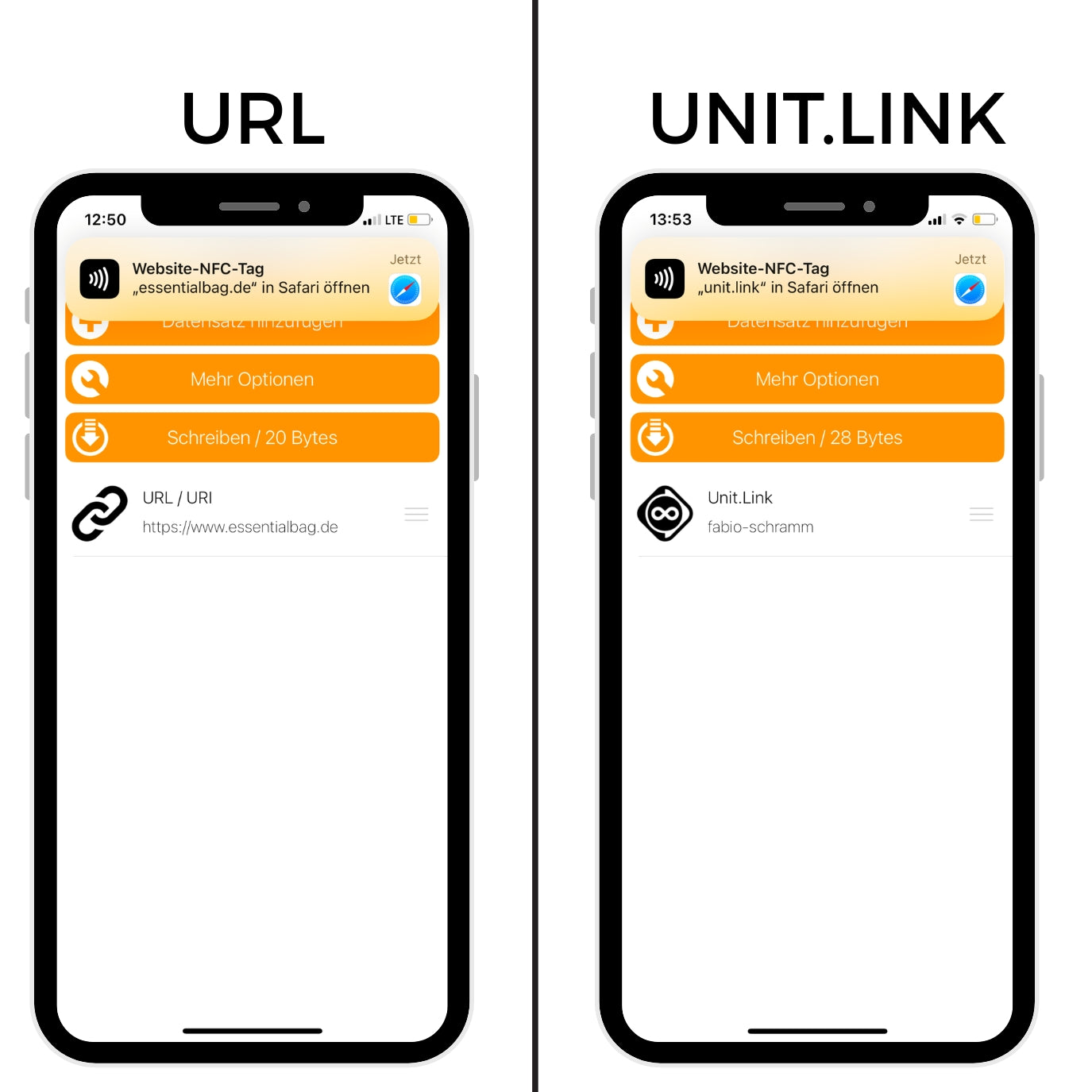
Step 5: Final Test
Test if everything worked by checking your Card you hold it to your smartphone.
(see image)
Make sure that all inserted links are correct and functional.
Have fun with your digital visitCard! 🎉
You can find further answers to your questions in our FAQs.
Get the most out of it
5 tips and trick
1. Keep the Card quiet and close to the smartphone
On some devices it takes 1–2 seconds for the NFC chip to be recognized – hold the Card Simply place the phone against the back of the smartphone and make sure it's unlocked and NFC is enabled. On iPhones, this function is always enabled.
2. Use a central link (e.g. Unit.Link)
This way you can easily change your content later without having to... Card needing to redefine. Ideal for social media, website, contact. and more.
3. Test your Card on multiple devices
Test both Android and iOS – that way you can be sure that your Card works flawlessly with customers, partners or friends.
4. Use a custom profile picture and Branding
Especially when Unit.Link You can use your logo, image, and colors to make a professional first impression – just like a real online business card.Card.
5. Always have it readily available – e.g. in a smart wallet
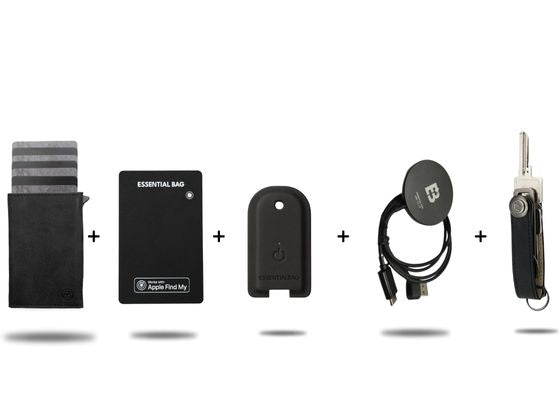
Your NFCCard It's robust and flat – ideal for carrying in your smart wallet, phone case, or passport holder. For best results, store it in the quick-access compartment of your Smart Wallet 3.0 for instant sharing. You don't even need to remove it from the compartment to scan it; simply fan it out.
Setup FAQ
Frequently asked questions about NFCCard (FAQ)
Yes, you can access the saved content at any time via the app. “NFC Tools” delete or overwrite.
The Card works with most modern smartphones, NFC support.
Android devices usually have NFC enabled by default; on iPhones, it's enabled from model [model number missing in original text]. iPhone 7 available.
If you have content or links in your Unit.Link-Profile If you change it, the original link will remain on the Card exist – the new information will still be displayed because Unit.Link Everything is centrally managed. You have to Card do not rewrite.
Yes! Unit.Link You can bundle many links (website, email, phone number, social media, etc.) – and only a single link on the Card write.
No, the Card is passive and interferes with other devices or Cardn not, as long as it is not read simultaneously with another NFC chip.
No, our logo is permanently printed directly during production and can not removed This ensures quality and brand protection.
An answer for every question
Extended FAQ
For questions about digital visitsCardFor information that goes beyond the furnishings, please visit our product page.

Need support?
CONTACT OUR FOUNDER
For direct questions about the product, our managing director will be happy to assist you. Don't hesitate to contact him directly:
Send us an email to: support@essentialbag.de
We are happy to help!